エミュレータでは正常にGoogle MapViewが表示されていたのに、公開したAndroidアプリをMarketからダウンロードして起動すると、MapViewが表示されない!?
※本記事は、Android Google Map API v1に関しての情報になります。
Androidアプリでは、Google Mapを簡単に表示できるMapViewというViewがありますね。
私は、Android Marketに公開する前に、エミュレータで正常にMapViewが表示されていたので、そのままAndroid Marketに公開して数日が経過してから気付いたのですが、全くMapViewが表示されていない事に気付きました。
そのときの解決策をご紹介したいと思います。
ちなみに、MapViewを使うには、以下のサイトでGoogle MapのAPIキーを取得する必要がある事は、ご存知の方も多いと思います。
Androidアプリを開発中は、SDKが生成している証明書のフィンガープリントを使って、Google MapのAPIキーを取得したと思います。
例えばWindows XPなら以下のファイルです。
C:\Documents and Settings\ユーザフォルダ\.android\debug.keystore
この証明書はデバッグ用なんですね。
Eclipseでのエミュレータ上では正常にMapViewが表示されても、そのAPIキーのままで公開用のapkファイルを生成してAndroid Marketに公開しても、実はMapViewが全く表示されません。
では、どうしたらいいのか。
Android Marketに公開するapkファイルを生成するときに、keystoreを作成しますよね。
手順は以下の記事で紹介しています。
AndroidアプリのAndroid Marketへの公開方法
上記の記事の「Androidアプリへ署名の付加」というところを見てください。
この手順で作成したkeystoreに含まれているフィンガープリントを使って、APIキーを取得すればいいのです。
もし、Androidアプリを公開した後、keystoreファイルを捨ててしまったんなら、もう一回作りなおしましょう。
コマンドプロンプトを立ち上げて、
keytool -list -keystore < 作ったkeystoreのファイル名までのフルパス>
と入力します。
すると、パスワードを聞かれるので、証明書を作成したときに設定したパスワードを入力すればOKです。
フィンガープリントが表示されますので、このフィンガープリントで、Google Map APIキーを取ってください。
もしパスワードを忘れてしまったら、、、またkeystoreを作り直しましょう。
スポンサーリンク
次は、公開するAndroidアプリの、レイアウトXMLで設定しているMapViewのAPIキーの属性を、取得したAPIキーに置き換えます。
それでもう一度公開用のapkファイルを作り直します。(さっきも紹介しましたが、以下が手順です。)
AndroidアプリのAndroid Marketへの公開方法
しかし注意!!
上記手順では、keystoreの新規作成を行っていますが、新規に作成するのではなく、フィンガープリントを出したkeystoreを指定してください。
以下の画面で「Use existing keystore」を選択してください。
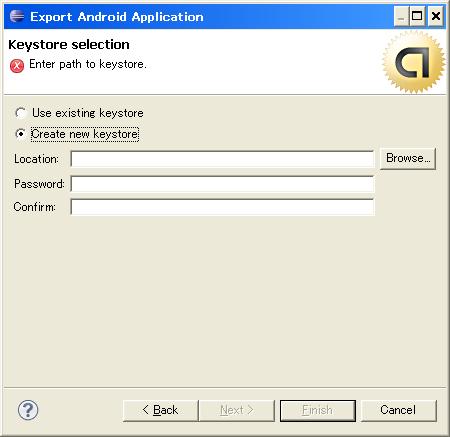
こうしないと、APIキーを生成したときに使った証明書と、アプリに付けられた署名が違う事になり、MapViewが表示されません。
これでAndroidアプリをMarketにアップロードして、ダウンロードしなおしてみてください。
正常にMapViewが表示されるはずです。
(ちなみに、エミュレータでは表示されなくなると思います。)


今回、初めてアプリ(駅までMap)をGooglePlayにアップしたのですが、地図が表示されずあせりました。
本ホームページを参考にして地図が表示できるようになりました。
ありがとうございました。
コメント有難う御座います。お役に立てたのなら何よりです。
アプリの公開おめでとうございます!
せっかくなので、ダウンロードさせて頂きます(^^)